Set up a phone
You set up a phone with a QR code from the dashboard. It takes about ten minutes, and you need no computer.
What you need
- An Android phone with Android 10 or newer that you may reset. Setup erases everything on it, so save what you want to keep first. The version is under Settings → About phone.
- Wi-Fi without a login page. Hotel and school networks that ask you to sign in do not work during setup.
- About ten minutes.
- The dashboard open on another device, such as your own phone or a computer: app.plainphone.org.
Step by step
Add the phone
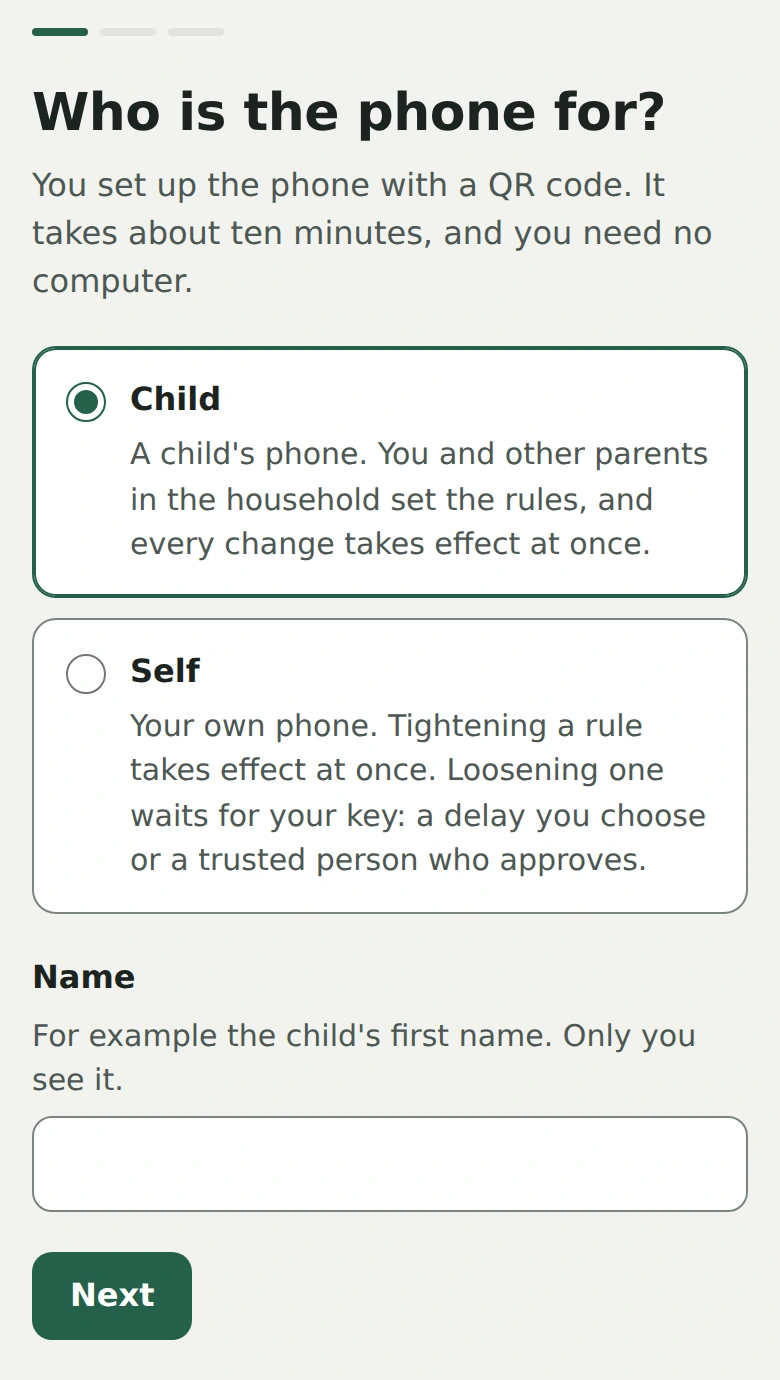
In the dashboard, choose Add phone. Say who the phone is for, a child or yourself, and give it a name. Only you see the name.
Choose a maintenance PIN
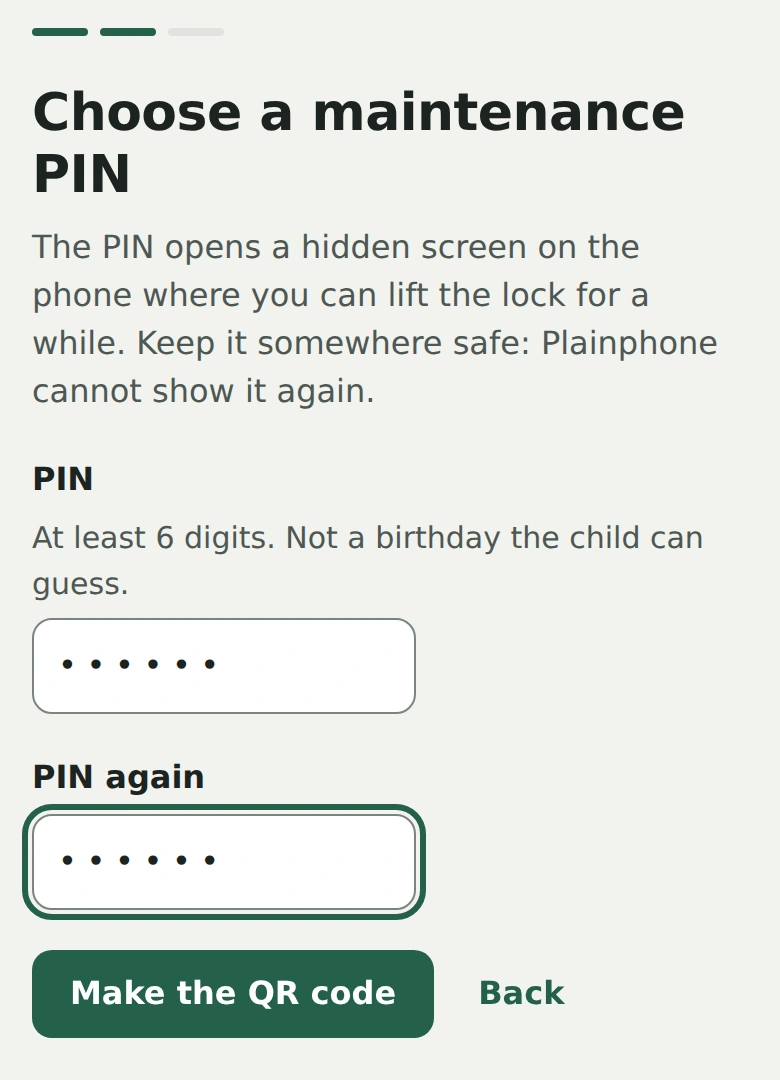
Choose a PIN of at least 6 digits and type it twice. It opens a hidden maintenance screen on the phone: tap Version 7 times, then enter the PIN. Keep it somewhere safe, because Plainphone cannot show it again.
The PIN never leaves your browser. Only a scrambled (hashed) copy goes into the QR code.
Show the QR code
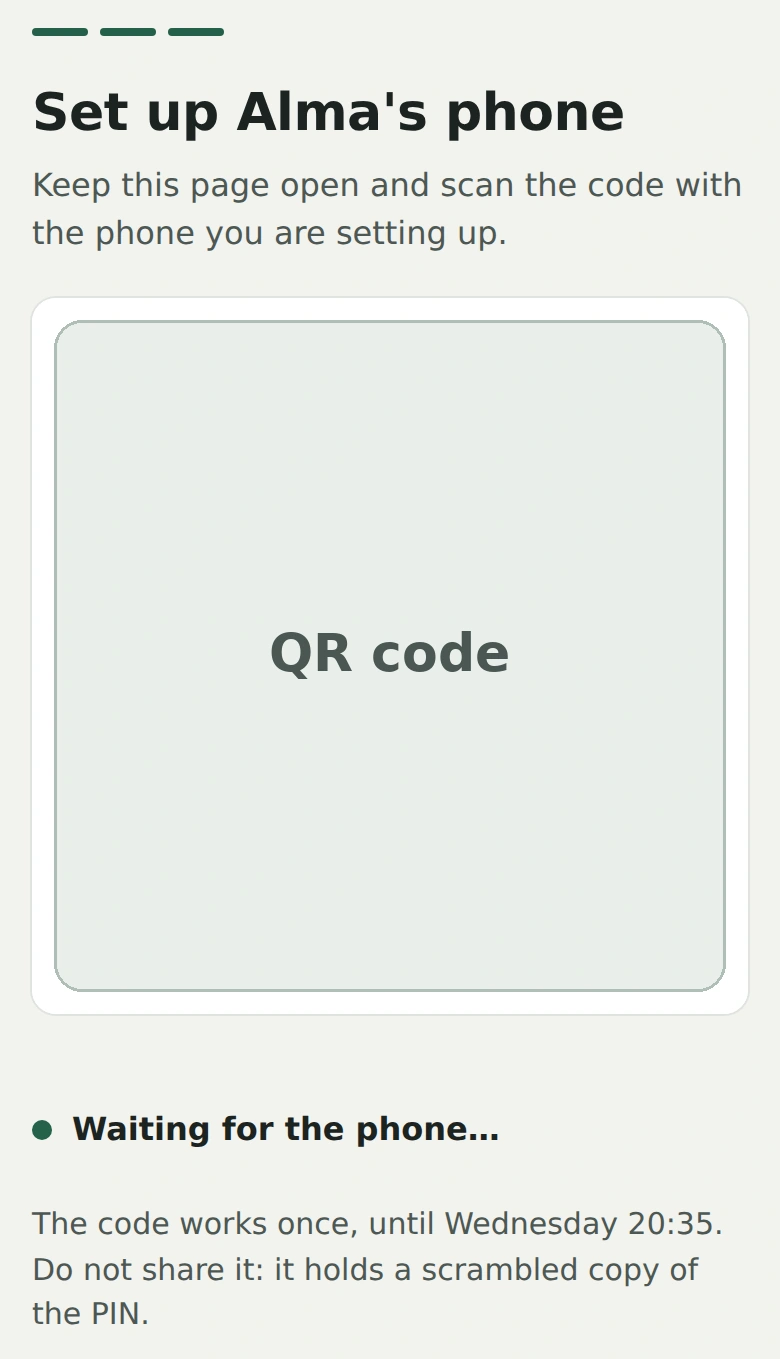
The dashboard now shows a QR code. It works once, and for 24 hours. Do not share it, and keep the page open.
Reset the phone
Factory reset the phone: Settings → System → Reset → Erase all data. Or use a new phone. Wait until the welcome screen appears.
The menu names differ a little between brands. If a Google account is on the phone, remove it first (Settings → Accounts), or the phone asks for it after the reset.
Tap the welcome screen 6 times
On the first welcome screen, tap the same empty spot 6 times in a row, quickly. Do not press Start. A QR reader opens. On some phones it first asks to download it.
Scan the QR code
Scan the code from the dashboard, then choose a Wi-Fi network. The phone downloads Plainphone, makes it the device owner and locks itself.
If the phone says it will be managed by an organisation, that is Plainphone. Accept: it is how the lock works.
Android 10 to 13 only: set the default phone app
During setup or just after, the phone asks Set Plainphone as your default phone app? Tap Set as default. Missed it? Open the Plainphone app and it asks again.
On Android 14 and newer this happens by itself.
Done
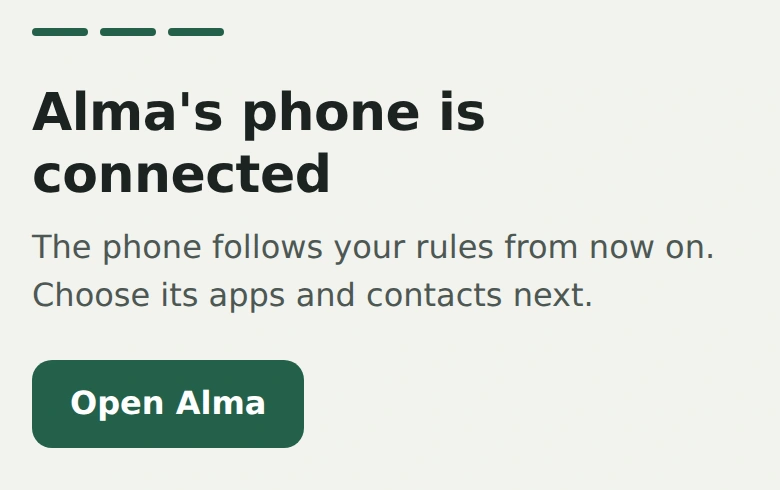
The phone connects to the dashboard by itself. There is no code to type. When it is connected, the dashboard says so. Then choose its apps and contacts.


If something goes wrong
- The QR code has expired or does not work
- A code works once, and for 24 hours. Open the phone in the dashboard and choose Show the setup QR code to get a new one. A new code stops the old one from working.
- The phone says “Can’t set up device”
- Check that the phone has Android 10 or newer (Settings → About phone). Older phones cannot be used.
- The phone shows a code instead of connecting
- In the dashboard, choose Add phone, then Type the code at the bottom, and enter the code the phone shows.
- Tapping 6 times does nothing
- The phone must be on its very first welcome screen. Tap one spot in the middle, quickly, and do not press Start.
Still stuck? Open an issue on GitHub.
Tested phones
| Phone | Android | Result |
|---|---|---|
| OnePlus 5T (A5010) | Android 10 | Works |
Works means that setup, the lock and the connection to the dashboard are confirmed on this phone. It has not been through the full bypass checklist yet.
Android 14 or newer is recommended. It does everything by itself and locks the phone app in Settings.
Android 10 to 13 has one known gap: the child can switch to the built-in phone app in Settings. Calls are then not filtered until Plainphone is chosen again. The dashboard shows it within 15 minutes.